Developer name
Confirm the developer is Shadow Launch Technology Limited. Search results can make it easy to miss the title or icon. Open the listing and check the developer or seller; don’t rely on the name “Shadowrocket” alone.
Official Manual · App Store Purchase and Installation
A paid app with a one-time purchase, available only on the App Store. Verify the listing and app details before you buy.
U.S. store reference price. See the App Store listing for actual pricing, system requirements, and purchase eligibility.
01 · Store and Account Region
Shadowrocket isn’t available in the mainland China storefront. Whether you can view the product page depends first on the region of the account used for media purchases, not your device language.
Get Shadowrocket from the App Store product page linked near the top of this page. When you open it, check whether the store shows the app details, a region-unavailable notice, or an account verification prompt. Each points to a different issue: no search results don’t necessarily mean you entered the wrong name, and seeing the app on the web doesn’t mean the signed-in store account can buy it. Check the purchase status shown in the App Store on your device.
On your device, go to Settings → Apple ID → Media & Purchases → Country/Region. Some system versions may first ask you to select “View Account” and verify your identity. This shows the account used for media and purchases, so check that it’s the account you intend to use. Menus may vary; follow the corresponding account options shown on screen.
You can also find the option to change your region along the same path. Before changing it, review Apple’s listed requirements and check items such as your account balance, active subscriptions, Family Sharing status, and payment method. Apple’s account page determines whether you can change regions and what you need to resolve first. Don’t submit inaccurate account information just to continue, and note that a region change may not be possible.
The App Store handles purchasing and installation; you don’t need to enter server details in Shadowrocket first. If the App Store won’t load, check your device’s network connection, account sign-in, and any system prompts. If only this app is marked unavailable, check your account region and the app’s availability. Note the exact message shown; it’s more useful for troubleshooting than simply saying “the download doesn’t work.”
02 · Verify the App
A similar name doesn’t mean it’s the same app. Before buying, check these three details on the store listing. Screenshots can help you recognize the interface, but they don’t verify the app’s identity.
Confirm the developer is Shadow Launch Technology Limited. Search results can make it easy to miss the title or icon. Open the listing and check the developer or seller; don’t rely on the name “Shadowrocket” alone.
Compare the listing with the official icon shown on this site: a blue-violet outlined rocket on a white background. Similar colors or shapes are only a clue; also verify the developer name and app ID.
The product URL should include id932747118, matching app ID 932747118. Check every digit in the link instead of relying on search ranking or promotional descriptions. If any detail doesn’t match, stop and reopen the product link on this page to verify it before buying.
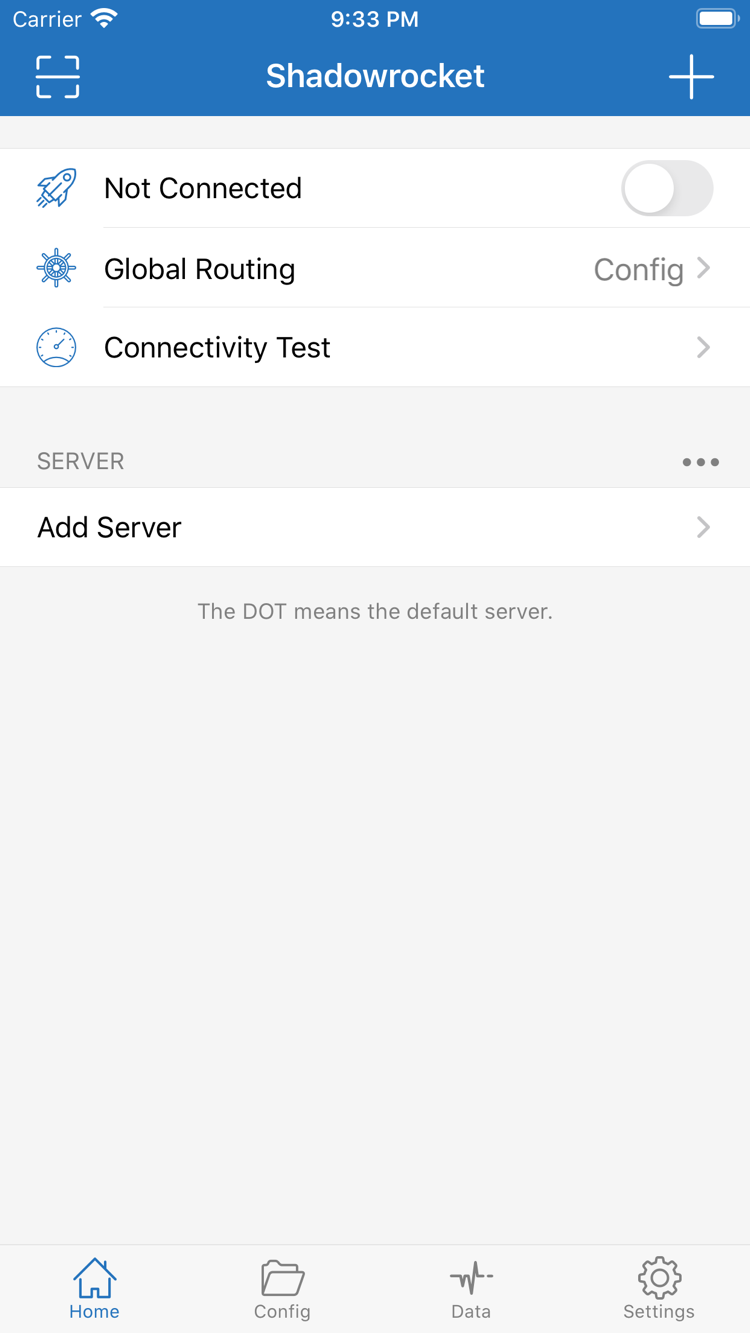
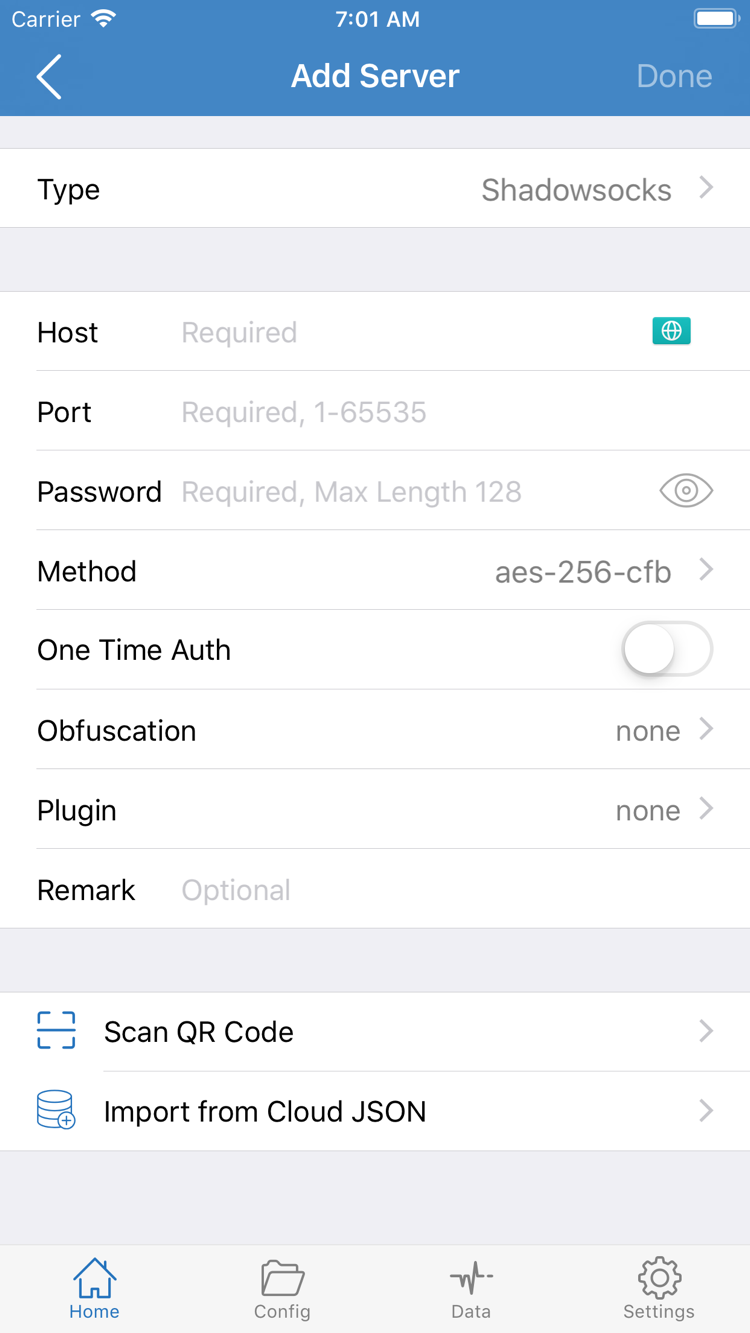
These are official App Store screenshots of the English interface. The interface may change with app updates, so use the buttons shown on your device. The list after installation depends on whether you’ve imported your own configuration; it doesn’t need to match the screenshots.
Shadowrocket is a closed-source commercial app. Verify it using the App Store listing; ratings, download counts, and unverified update dates aren’t used as evidence on this page.
03 · Install on iPhone
Purchasing, installing, adding a configuration, and connecting are four separate steps. Completing one doesn’t mean the next is already set up.
First, expand Compatibility on the App Store product page and confirm that your iPhone is supported. Check the listing for system requirements. Then review the price and signed-in account, and follow the prompts to confirm your purchase. A cloud icon or an “Open” button may mean the app is already owned by your account or installed on the device. Check its status before treating it as a new purchase.
Return to the Home Screen and open Shadowrocket. First, check the connection status on Home and find Add Server. A new installation may not have any usable servers yet; that’s a normal starting point. Have your own subscription or server details ready, then choose an import method that matches your information. Installing the app doesn’t create a connection service or fill in an account, address, or password for you.
When you first enable a connection, iOS may ask to let the app add a VPN configuration and confirm with your device passcode or authentication. This is iOS authorizing a network configuration, not another App Store payment. Only approve it after confirming that you initiated the connection. If you cancel, the connection may not start; return to the app to try again and review the system prompt.
After authorization, check the selected server and Global Routing. Config, Proxy, and Direct handle traffic differently; an enabled switch alone doesn’t confirm that everything is set up correctly. The connection status, Connectivity Test, and actual access results each show part of the picture. If it doesn’t work, first check that your details are complete and the configuration is valid, then troubleshoot further.
This page covers app purchases and installation only. To continue, read the Shadowrocket usage guide and import your existing details. If the app is installed but won’t connect, see the troubleshooting manual before reinstalling and potentially losing settings that haven’t been backed up.
04 · iPad and Other Apple Devices
Shadowrocket is a universal app for iPhone and iPad. After buying it with an Apple ID, you can find it in Purchased on another compatible device and download it again; switching from iPhone to iPad alone doesn’t mean you need to buy it again. Before you start, check the account used for Media & Purchases on your iPad. See the App Store listing for system requirements and purchase eligibility.
The wider iPad screen may show content differently or display more information at once than an iPhone, but look for the same interface labels, such as Home, Config, and Settings. Don’t change existing settings just because the layout looks different. Use your own server details for addresses, ports, passwords, and other protocol fields.
Purchase history and configuration details are separate. The App Store can confirm that you bought the app, but that doesn’t mean your iPhone’s server list is already on your iPad. After installation, check the list and current configuration, then import your own subscription or restore a backup. If you use sync, verify the device sign-in, what’s included, and the result. Don’t assume migration is complete just because the app appears on the device.
The installation and first-connection steps and screenshots on this page focus on iPhone and iPad. Other devices may have different controls, interfaces, and authorization steps. Follow the instructions shown on the device rather than assuming touch-screen steps apply everywhere.
05 · New Device and Reinstallation
Redownloading a purchased app requires the original purchasing account. Restoring connection details requires your own backup or existing information.
On your new device, open the App Store, go to your account, then open Purchased. Search for Shadowrocket and download it again. Menu names may vary slightly between system versions, and the app may appear in the Apps list. The key is to use the Apple ID that originally bought the app and find the matching purchase record. For eligible accounts and devices, redownloading usually doesn’t require another payment.
If the product page still shows a price, don’t confirm payment right away. Check whether Media & Purchases is signed in to a different account, then review the original purchase record, current storefront region, and device compatibility. The account used for cloud services on your main device may differ from the account used for App Store purchases, so the account shown at the top of Settings alone doesn’t confirm who owns the purchase.
After reinstalling, check the server list and Config. If your previous configuration isn’t there, import your existing subscription or server details, or a configuration file you saved earlier. The purchase record doesn’t save all your connection settings for you. Before deleting the app, make sure important information is backed up, especially fields you entered manually and didn’t save elsewhere.
Restore your information in stages: first confirm the import succeeded, then check the selected item and Global Routing, and finally enable the connection. If you import several older configurations at once, similar names can make it easy to choose the wrong one; compare the actual addresses and configuration contents. Avoid publicly sharing screenshots containing subscription URLs, passwords, or other private information during migration.
Check the App Store listing and Apple account interface for Family Sharing eligibility, how family members can access the app, and any requirements. Redownloading with the original purchasing account is a separate process; don’t assume the same steps apply to Family Sharing. Each family member should manage their own connection details.
06 · Price and Purchase Eligibility
Your purchase gives you the right to use the app. Connecting also requires your own subscription or server details.
The U.S. store reference price for Shadowrocket is $2.99, as a one-time purchase. The app isn’t a monthly client subscription. Prices appear in local currencies in each storefront; check the App Store payment confirmation for the actual price, taxes, and purchase eligibility. The U.S. dollar reference price may not be the amount charged in every region.
A one-time app purchase ≠ a connection plan. The app provides tools to add, manage, and use existing configurations; paying for it doesn’t automatically provide a server address or usable subscription. This is the Shadowrocket official website and manual. It doesn’t provide, sell, or recommend nodes or subscriptions; it explains how to use information you already have.
If your existing service has an expiration date, data limit, or renewal terms, those are set by that service and managed separately from the one-time App Store purchase of the client. Buying the app again usually won’t fix a connection problem caused by an expired server or invalid credentials. First check your own details, then determine whether the issue is with the configuration, network, or service.
App updates are delivered through the App Store. Manage automatic updates in your device settings or check for available updates in your store account. See the product page for release details; this page doesn’t list a fixed version number or update date. Before updating, make sure you have a usable backup of any important custom configuration so you can check your settings afterward.
To check a payment, review the purchase history and order status in your Apple account. For refunds or billing issues, use the support option provided with the order and follow the displayed terms and outcome. The app’s connection status doesn’t show whether an order is complete, and a completed App Store order doesn’t prove your connection details are valid. Check these issues separately.
Purchases and Installation · Frequently Asked Questions
Shadowrocket isn’t available in the mainland China storefront. Your Apple ID country or region determines which storefront you can access. Check Settings → Apple ID → Media & Purchases → Country/Region, then open the product link on this page. The “us” in the link won’t change your account region.
First determine whether the issue is storefront availability, an incomplete payment, or a stalled download. Check your account region, payment prompts, device compatibility, available storage, and network connection; follow the reason shown by the App Store. If you’re unsure whether the purchase went through, check your purchases and purchase history before trying to pay again.
On the App Store, sign in with the Apple ID used for the original purchase, go to Account → Purchased, find Shadowrocket, and download it again. You usually won’t need to pay again. If a price still appears, check the purchasing account, region, and purchase history. Your subscriptions and configurations must be imported or restored separately after reinstalling the app.
Shadowrocket works on both iPhone and iPad. With the same Apple ID used for the purchase, you can redownload it from Purchased on a compatible iPad. Check the App Store listing for system requirements and purchase eligibility. Restoring the app does not sync your configuration.
The compatibility section of the same App Store listing includes Mac, Apple TV, and Apple Vision. Check the listing on your target device for system requirements, device compatibility, and universal purchase availability. The App Store remains the only place to get the app.
Start by identifying Home, Add Server, Config, and Settings. The official screenshots on this page show the English interface, and the manual uses the same interface labels for easy reference. After installing the app, follow the usage guide and choose an import method for your existing subscription or server details. Don’t guess what a setting does based on its name.